Active X
Jump to navigation
Jump to search
The printable version is no longer supported and may have rendering errors. Please update your browser bookmarks and please use the default browser print function instead.
Question
Internet Explorer won't allow me to install Active X controls for gate.x10.com or myhouse.x10.com
Answer
Internet Explorer should prompt you to install Active X controls the first time you visit one of our remote viewing sites. If it doesn't, follow these steps:
- Open internet explorer
- Click “Tools” in the menu bar
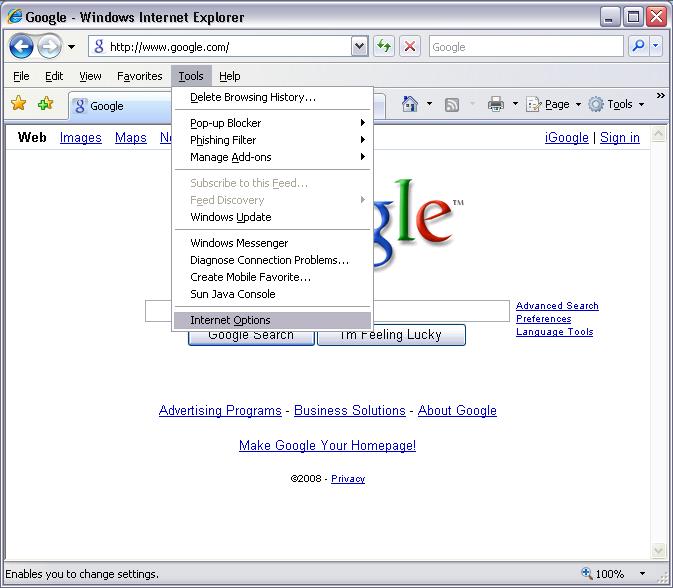
- Click “Internet Options”
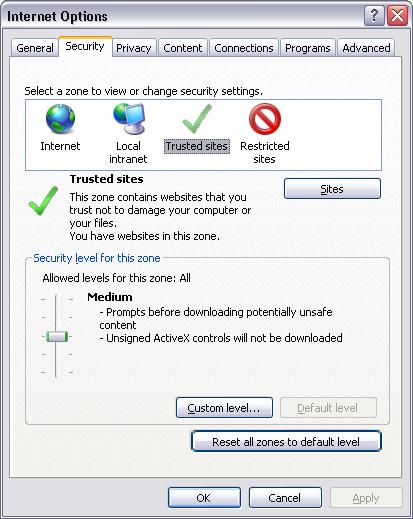
- Click the “Security” tab
- Click “Trusted Sites” under the “Select a zone to view or change security settings”
- Click the “Sites” button
- Input http://gate.x10.com/ in the “Add this website to the zone:” dialog box
- Click the “Add” button
- Uncheck the box for “Require server verification (https:) for all sites in this zone”
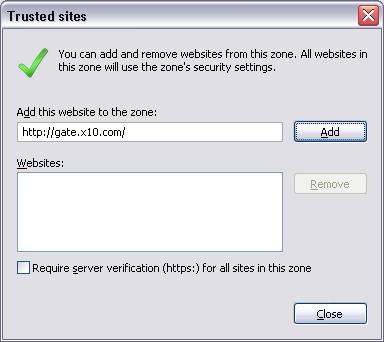
- Click the “Close” button, then the “OK” button
- Go to http://www.pcpitstop.com/testax.asp. If the current time and date do not appear in the space indicated, wait to be prompted to download an add-on. Allow it to load. This is a cetificate for Active X.
- Input http://gate.x10.com/ into the address bar of Internet Explorer and hit enter.


You should now be prompted to install the ActiveX control from X10.