Motion Recording In Vanguard ICC
Jump to navigation
Jump to search
Question
How do I configure motion recording in Vanguard ICC?
Answer
- Set your motion sensor(s) to a different house code or unit code group than your camera(s). It is often easiest to put the sensor(s) on A1-A4 and the cameras(s) at A9-A12. You could also put the sensor(s) on A and the camera(s) on B.
- Open Vanguard ICC, click the Options tab, then go to the Video Rec. tab:
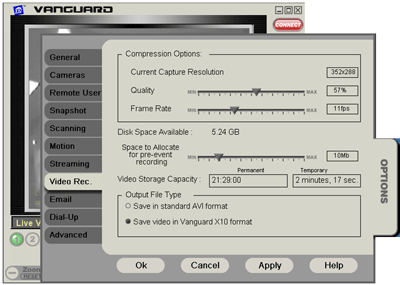
- In this tab, select Save in standard AVI format for Output File Type then click Apply.
- Next, click the Motion subtab:
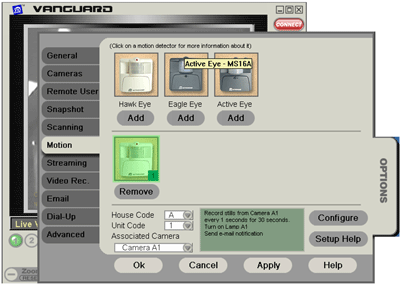
- Add your sensor, configure motion actions in the window that comes up, then click OK:
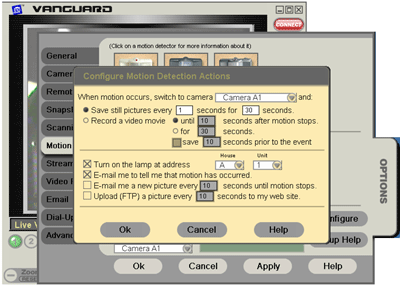
- In the original Options-Motion window, confirm that the sensor is at the correct House and Unit code and that you have selected the correct Associated Camera. After doing this, click OK again.
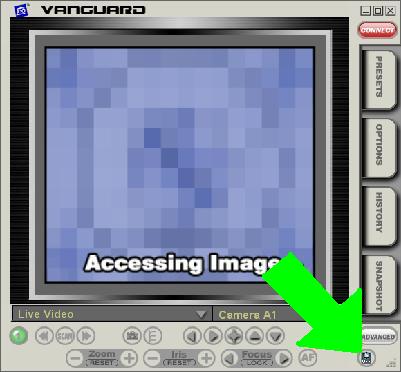
- To activate motion sensing, click the motion sensor icon in the lower right hand corner of the main Vanguard window (it will turn green):